

Plug-in URL
Introduction
Section titled “Introduction”The Plug-in components are our solution for a fast way to integrate Face Scans into your website or mobile app and obtain health insights quickly. We offer two components:
- Face Scan plug-in – mandatory, required to perform Face Scans
- Health Dashboard plug-in – optional, provides a ready-to-use, intuitive interface that presents a user’s health insights clearly and effortlessly.
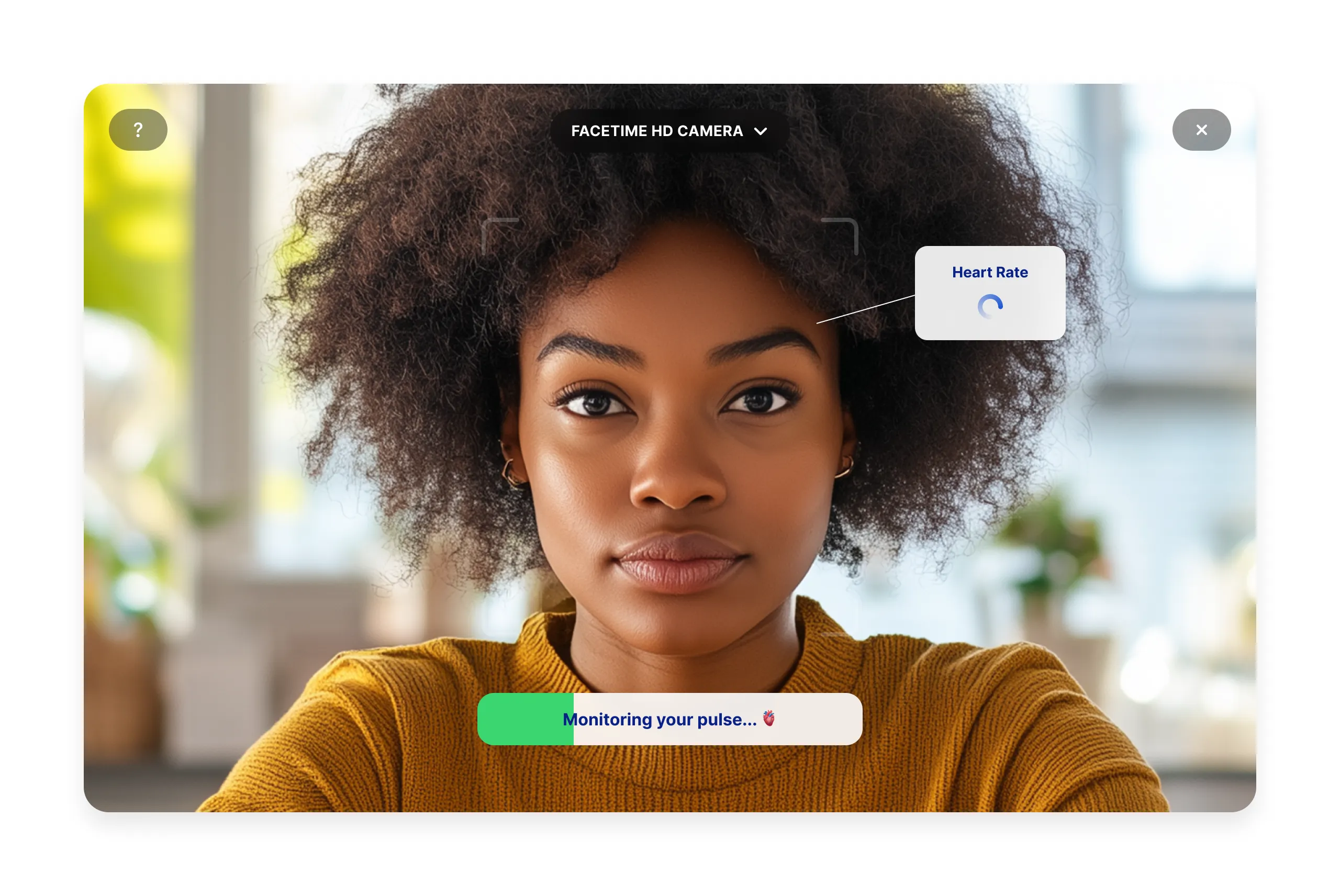
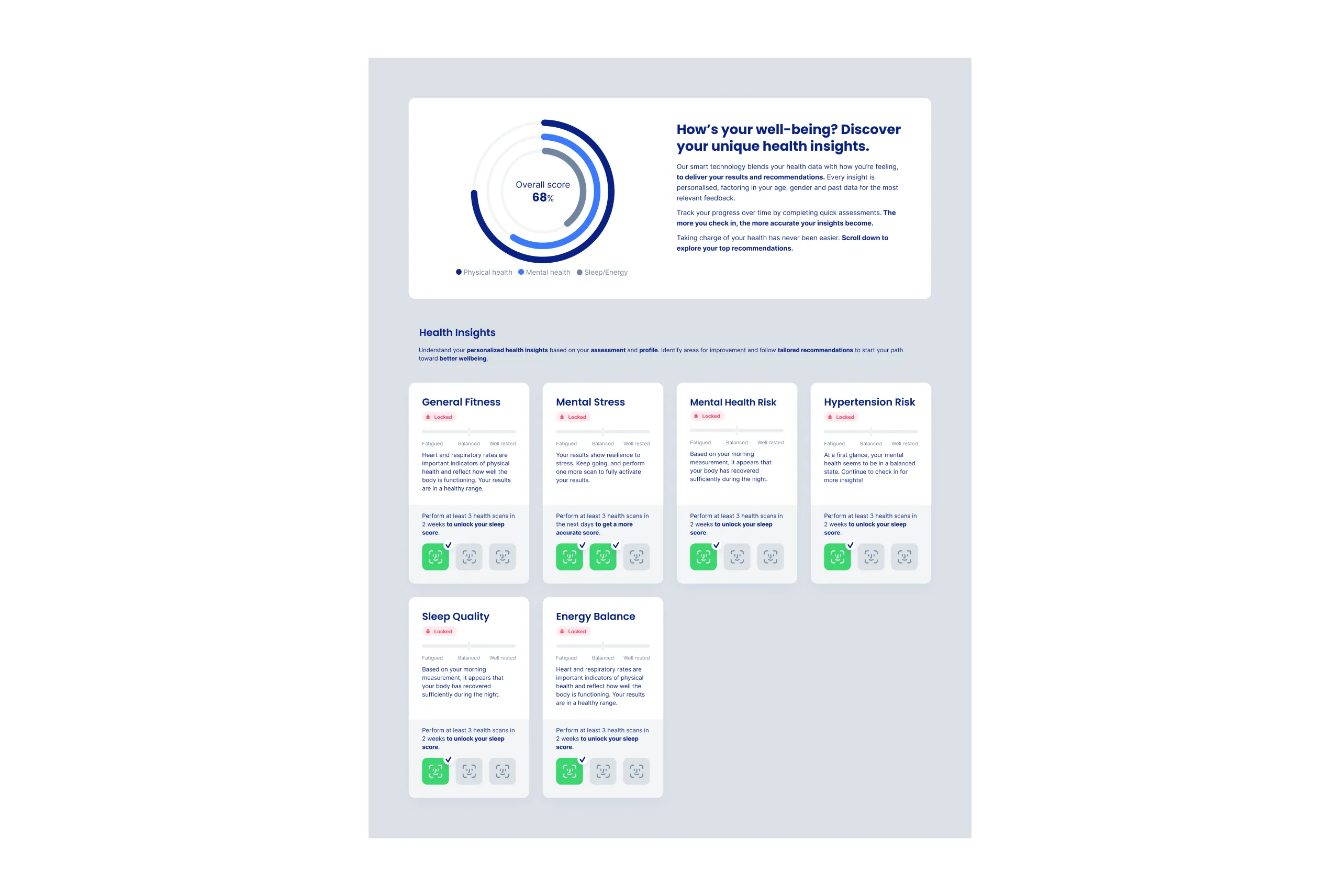
For an overview of the functionality and features included in our plug-ins, refer to the Plug-in components documentation .
To integrate these plug-ins within your website or app, you will need a temporary authenticated URL.
Examplehttps://plugin.intelliprove.com?action_token=<action_token>&patient=<patient>
Validity
The action token embedded in the URL has a fixed expiry time. Currently, this is set to 6 hours, meaning the URL will no longer be valid after that. A new temporary URL should be requested after expiring.
Prerequisites
Section titled “Prerequisites”To request a Face Scan URL, the user performing the scan must be registered with IntelliProve.
Request URL
Section titled “Request URL”Requesting an authenticated URL for a plug-in to can be done with a simple HTTP GET call to the IntelliProve API.
- For the Face Scan plug-in, use the following endpoint: Get Face Scan URL
- For the Health Dashboard plug-in, use the following endpoint: Get Health Dashboard URL
You can paste the obtained Face Scan URL in your browser to play with the Face Scan and show off a first POC!
When to request the plug-in URLs?
Section titled “When to request the plug-in URLs?”It’s a good practice to request a new URL for every new session initiated, i.e., every new end-user logging into your platform. For each new session, ensure to request a new URL via our API. Once generated, the same URL can be used for the same user for up to 6 hours, after which a new request will be necessary.
Next steps
Section titled “Next steps”Now, that you understand how to request the plug-in URLs, it’s time to embed the Face Scan plug-in component in your app. Continue with the Embed Plug-in documentation.