

Listening to message events in webapps
Introduction
Section titled “Introduction”This document explains how to listen for message events from the Plug-in within your parent website’s code. These events allow you to determine when the iframe should be dismissed. Additionally, you can retrieve the Face Scan ID from these messages, which can be needed to request V2 Widgets [deprecated] or results via the API for a specific Face Scan.
We cover the basic communication protocol between the plug-in iframe component and your website, which we refer to as the “parent website”.
Do note that it is also possible to fetch the results at a later point in time. You can either request the plug-in’s entire results screen (refer to Request results page URL) or just get the data using our Get results API endpoint.
Basic Concept
Section titled “Basic Concept”The Plug-in iframe incorporates a mechanism that allows it to communicate events with the parent website, i.e. your website. These can then be handled as needed. We use the browser postMessage() feature to facilitate communication between the plug-in iframe component and the parent website.
The messages are sent at various stages, updating the parent website of the user’s progress inside the plug-in.
Post Messages
Section titled “Post Messages”The window.postMessage() is a method that safely enables communication between Window objects; for example between a page and an iframe embedded within it.
More info on the postMessage browser feature:
https://developer.mozilla.org/en-US/docs/Web/API/Window/postMessage
Browser Support
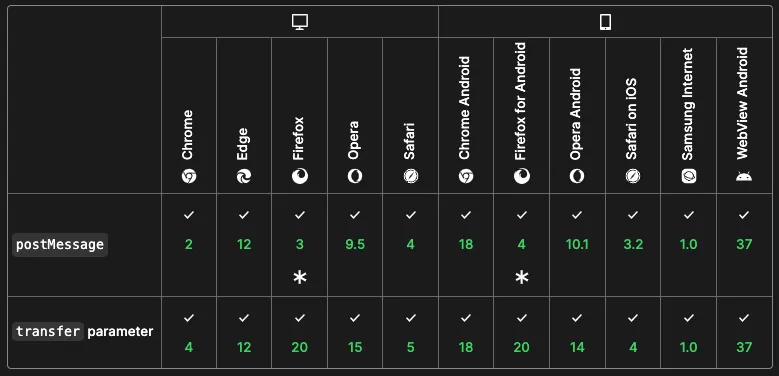
Set up Message Listener
Section titled “Set up Message Listener”The code below shows a basic example of how to let your parent website listen for post messages from the plug-in iframe component. Add the JS below to your website.
window.addEventListener( "message", (event) => { // Access the message body via `event.data` }, false,);Full example
<!DOCTYPE html><head> <script> window.addEventListener("message", function (event) { console.log(event.data); }); </script></head><html> <body> <h1>IntelliProve Hello World</h1> <iframe id="intelliprove-plugin" src="your_plugin_url" width="100%" height="800px"></iframe> </body></html>Example logging Face Scan UUID
<!DOCTYPE html><head>  <script>    window.addEventListener(      "message",      (event) => {       if (event.data && event.data.uuid) {        console.log(`Face Scan UUID: ${event.data.uuid}`);      }      },      false   );
  </script></head><html>  <body>    <h1>IntelliProve Hello World</h1>    <iframe      id="intelliprove-plugin"      src="your_plugin_url"      width="100%"      height="800px"></iframe>  </body></html>
Next steps
Section titled “Next steps”- To learn more about the different types of messages the plug-in sends during a health check, refer to the Message events page.
- To allow for seamless integration of the iframe in your website, matching your brand’s colours and fonts, please visit our UI Customization documentation.