

Message events
Introduction
Section titled “Introduction”To keep your app informed about the user’s progress within the plug-in, we transmit data via message events at various stages. This document describes the different types of events, when they are sent, and their data format. The events are in JSON format and contain information about the health check’s progress and the final results.
Prerequisites
Section titled “Prerequisites”Make sure you’ve gone through the following documentation:
To learn how to listen for these data messages in web apps, refer to the Listening to message events page.
Overview
Section titled “Overview”We currently distinguish the following events:
- StartNewMeasurement
- RecordingStarted
- RecordingStopped
- Results
- Buckets
- BucketSummaries
- UserFinished
- Dismiss
- Error (informative)
Summary of event occurrences
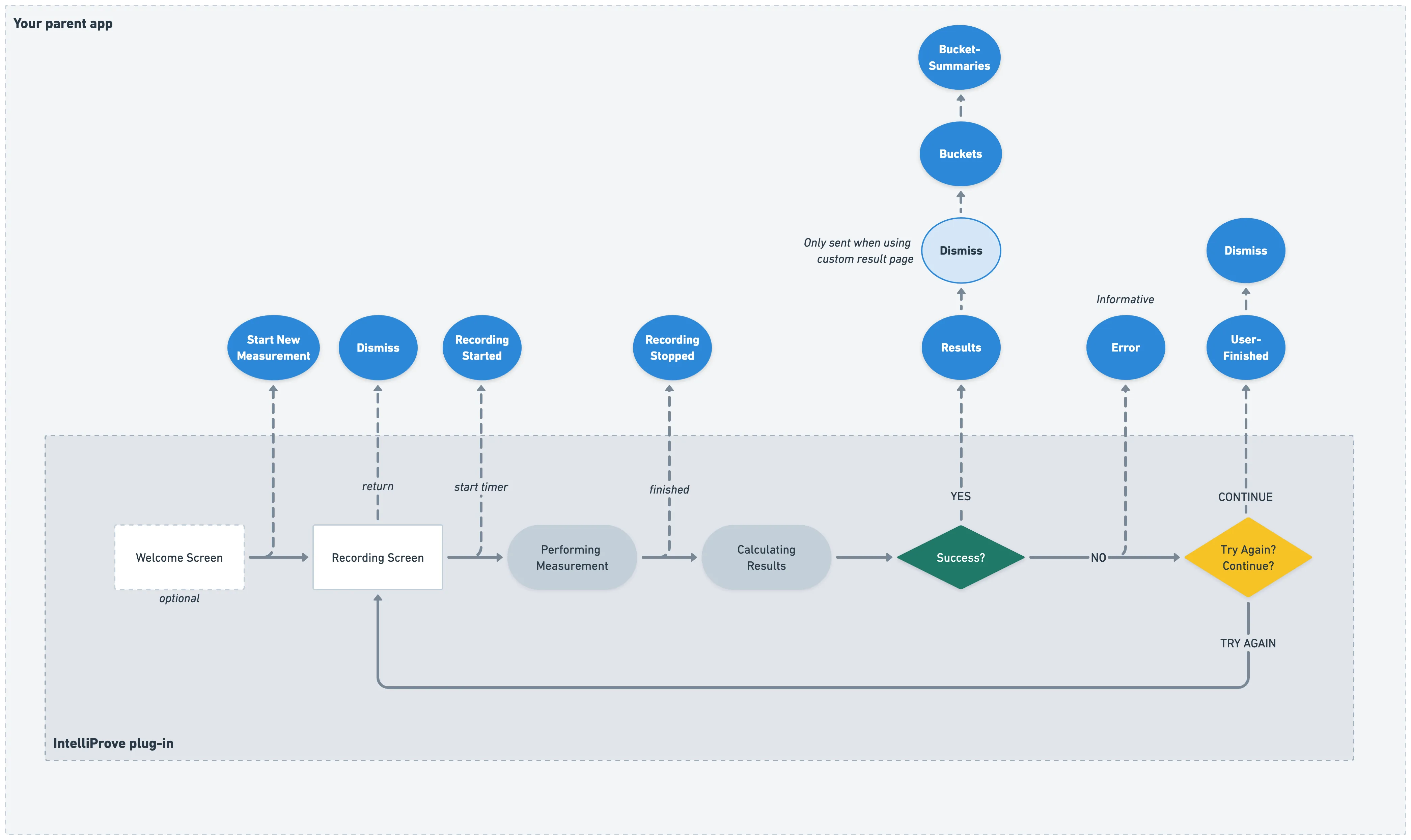
Section titled “Summary of event occurrences”When the user clicks the ‘Perform Measurement’ button on the welcome screen, a Start New Measurement event is sent. Upon reaching the recording screen, users encounter the camera stream along with a start button. Pressing the start button initiates the quality-checking process. If the conditions are favourable and the check passes, the actual recording starts and a Recording Started event is sent. The timer begins counting down, and upon reaching zero, the measurement concludes, prompting a Recording Stopped event. The subsequent events depend on the outcome of the measurement.
If the measurement is successful, three events containing the health check results are sent: Results, Buckets and BucketSummaries.
However, there might be instances where the quality deteriorates too much during the health check, rendering an accurate assessment unfeasible. For instance, this could occur if the lighting abruptly dims. In such cases, an ‘Error’ event is sent and users are presented with two choices: they can restart the health check by selecting the ‘try again’ option, or they can opt to conclude the health check without completing it successfully by clicking the ‘continue’ button. Choosing the ‘try again’ option brings them back to the start of the health check process. If they select the ‘continue’ option, no biomarker results will be generated, and a userFinished event will be sent.
The dismiss event is sent whenever the web plugin should be closed.
The event types are further explained in detail below.
Event types
Section titled “Event types”The diagram below illustrates the different stages within the plug-in and the corresponding events triggered.
Start New Measurement
Section titled “Start New Measurement”Event Data
{ "stage": "startNewMeasurement", "data": { "onboarding": true }}stage: “startNewMeasurement”data: Additional detailsonboarding: boolean; when True, the user first landed on the onboarding screen. When False, the user immediately advanced to the recording screen.
Recording Started
Section titled “Recording Started”Event Data
{ "stage": "recordingStarted", "uuid": "380cae2a32ed4023be60a63c3ee97e95",}stage: “recordingStarted”uuid: health check UUID
Recording Stopped
Section titled “Recording Stopped”Event Data
{ "stage": "recordingStopped", "uuid": "380cae2a32ed4023be60a63c3ee97e95",}stage: “recordingStopped”uuid: health check UUID
Results
Section titled “Results”The results of the health check in their most basic form, listing the extracted biomarker values.
IntelliProve calculates the following biomarkers:
heart_rate: Heart rate in beats per minuterespiratory_rate: Respiratory rate in breaths per minute (nullable)heart_rate_variability: Heart Rate Variability or HRV in millisecondsans_balance: Balance of autonomous nervous system, dimensionlessresonant_breathing_score: Resonant Breathing score in percentagemorning_readiness: Morning Readiness score, dimensionless (only available between morning hours)acute_mental_stress_score: Acute Mental Stress Score, dimensionlessmental_health_risk: Mental Health Risk as enumerator 1 (“low”), 2 (“medium”) or 3 (“high”)
For more info on how to interpret these values, please refer to our Insights & biomarkers documentation.
In addition to the biomarkers we also provide the timestamp and epoch properties representing both an ISO and integer (UTC) representation of the time of the measurement.
Event Data
{ "stage": "results", "uuid": "380cae2a32ed4023be60a63c3ee97e95", "patient": "5jb54ojlk23m", "performer": "083lna91utnz4v", "data": { "epoch": "1692282217", "timestamp": "2023-08-17T16:23:37+02:00", "heart_rate": "54", "respiratory_rate": "6", "heart_rate_variability": "87", "ans_balance": "2", "resonant_breathing_score": "99", "morning_readiness": "8", "acute_mental_stress_score": "3", "mental_health_risk": null }}stage: “results”uuid: health check UUIDpatient: (nullable) Patient reference, initially passed in the web plug-in URLperformer: (nullable) Performer reference, initially passed in the web plug-in URLdata: Results data object
Buckets
Section titled “Buckets”The biomarker buckets provide the results in an alternative format, grouping them in logical sets and providing more context to the values in each set (bucket).
IntelliProve offers a holistic approach to well-being by organizing information into distinct buckets; i.e. physical health, mental health, sleep and energy, and mindfulness.
Each bucket has the following properties:
- The
namedistinguishes the specific bucket. A list of the currently available buckets: “physical”, “mental”, “energy_sleep”, “mindfulness”. - The
timestampandtimestamp_epochproperties present both an ISO and integer (UTC) representation with the time of the measurement. - The
biomarkersrepresent a list of selected biomarkers relevant to the specific bucket. - The
statusindicates the overall users’ health state for the current bucket, based on the biomarker values. We define three different states: “good”, “neutral” and “bad”.
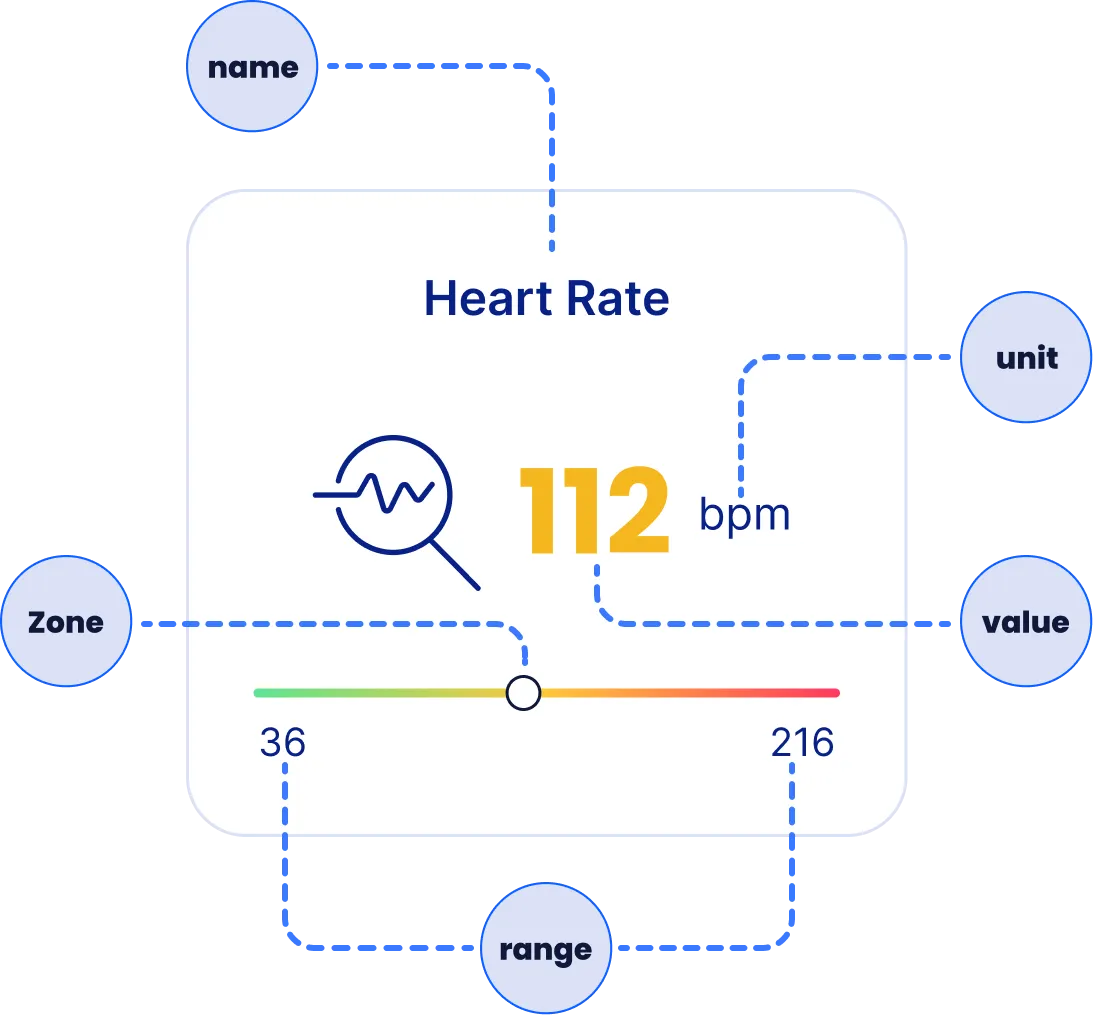
Each biomarker consists of the following properties:
- The
valueis the actual numerical value obtained for the biomarker during the health check. It can be an integer or a floating point number. - The
rangerepresents the entire span of possible values for that the biomarker, indicated by minimum and a maximum. - The
zoneindicates where the biomarker value falls among three categories “good,” “neutral,” and “bad”, which relates to health condition. - The
optimumdefines how the range should be interpreted and visualized. There are three possible values for optimum: “low,” “high,” and “middle.”- For “low”: Lower values are categorized as “good” (green color), while higher values are categorized as “bad” (red color)
- For “high”: Higher values are categorized as “good” (green color), while lower values are categorized as “bad” (red color).
- For “middle”: The “good” zone (green color) is centered around the middle of the range. Values lower or higher than this midpoint are categorized as “bad” (red color).
Event Data
{ "stage": "buckets", "uuid": "380cae2a32ed4023be50a63c3ee97e95", "patient": "test-patient", "performer": "test-performer", "data": { "buckets": [ { "name": "physical", "timestamp_epoch": 1692282217, "timestamp": "2023-08-17T16:23:37+02:00", "status": "good", "biomarkers": [ { "name": "heart_rate", "value": 54.0, "zone": "good", "unit": "bpm", "range": [ 36.0, 216.0 ], "optimum": "low" }, { "name": "respiratory_rate", "value": 6.0, "zone": "good", "unit": "brpm", "range": [ 4.0, 48.0 ], "optimum": "middle" } ] }, ... // Other buckets ] }}stage: “buckets”uuid: health check UUIDpatient: (nullable) Patient reference, initially passed in the web plug-in URLperformer: (nullable) Performer reference, initially passed in the web plug-in URLdata: Buckets data object
Bucket Summaries
Section titled “Bucket Summaries”For each bucket, we also provide a human-readable representation of the results in the format of personalised feedback (summary) and tips.
Event Data
{ "stage": "bucketSummaries", "uuid": "380cae2a32ed4023be60a63c3ee97e95", "patient": "test-patient", "performer": "test-performer", "data": { "summaries": [ { "name": "physical", "summary": "Your heart rate is very low, suggesting a state of rest or recovery. Your respiratory rate is slow, indicating a relaxed and calm state.", "tip": "Based on your heart rate and respiratory rate, it appears that you are in a state of deep relaxation and calmness. This suggests that you are in good physical and mental health. It is important to continue practicing stress management techniques to maintain this state of wellbeing." }, { "name": "mindfulness", "summary": "Congratulations! Your mindfulness exercise is highly effective. Your resonant breathing score of 99 indicates a strong synchronization between your breathing frequency and heart rate variability. Additionally, your low respiratory rate and heart rate suggest that you are in a state of deep relaxation and good cardio health. Keep up the excellent work!", "tip": "To further improve your mindfulness exercise, you can try incorporating longer exhales during your breathing practice. This can help enhance the relaxation response and promote even greater synchronization between your breathing and heart rate variability. Keep up the great work!" }, // ... Other buckets ] }}stage: “bucketSummaries”uuid: health check UUIDpatient: (nullable) Patient reference, initially passed in the web plug-in URLperformer: (nullable) Performer reference, initially passed in the web plug-in URLdata: (nullable) Buckets summaries data object
UserFinished
Section titled “UserFinished”Occasionally, the conditions may deteriorate while performing the health check, making an accurate health assessment unfeasible. For instance, this might happen if the lighting suddenly gets very dim. In such instances, users are presented with two choices: they can restart the health check by selecting the ‘try again’ option, or they can opt to conclude the health check without completing it successfully by clicking the ‘continue’ button.
If they select the latter option, no biomarker results will be generated. We will notify you of this outcome with a “userFinished” event.
This event is also sent when the user’s device does not have a camera or when the necessary permissions to access the camera have not been granted.
Event Data
{ "stage": "userFinished", "data": { } // RFU}stage: “userFinished”data: Reserved for future use
Dismiss
Section titled “Dismiss”We will notify you with a “dismiss” event when the web plugin can be closed. This can be because of the following reasons:
- The user chose to abort the health check without starting it, i.e. by clicking the “return” button
- The measurement is finished and the results are sent via the “results” event (only sent when not using the built-in results screen)
- The user chose to continue without performing the health scan
Event Data
{ "stage": "dismiss", "data": { } // RFU}stage: “dismiss”data: Reserved for future use
Error (informative)
Section titled “Error (informative)”If the health check did not complete successfully, we handle the error and retry internally. For full transparency, we forward this error as an event in case your app needs to keep track of this.
Event Data
{ "stage": "error", "uuid": "380cae2a32ed4023be50a63c3ee97e95", "patient": "test-patient", "performer": "test-performer", "data": { "code": 10, "description": "", "fatal": False }}stage: “error”uuid: health check UUIDpatient: (nullable) Patient reference, initially passed in the web plug-in URLperformer: (nullable) Performer reference, initially passed in the web plug-in URLdata: (nullable) Error data object