

Custom questions screen before results
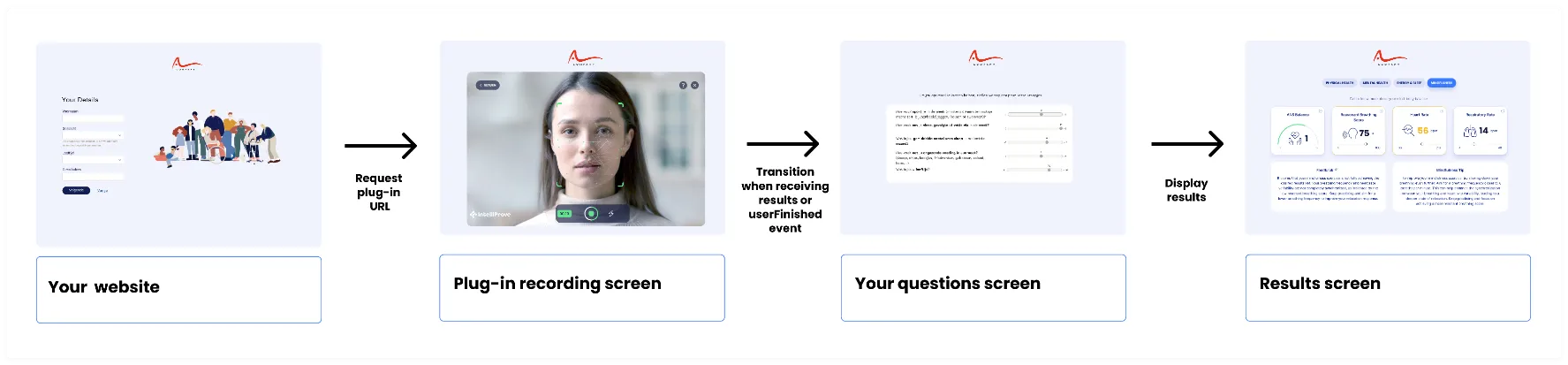
By default, the plug-in transitions automatically from the recording screen to the results screen once the measurement is completed.
However, you may want to incorporate additional content after the measurement process but before displaying the plug-in’s built-in results screen, such as an extra page with questions. This guide will show you how to integrate such additional content into the user flow seamlessly and display the results you desire.
Prerequisites
Section titled “Prerequisites”Make sure you’ve gone through the following documentation:
The steps to accomplish this are described below, accompanied by a figure referring to the steps.
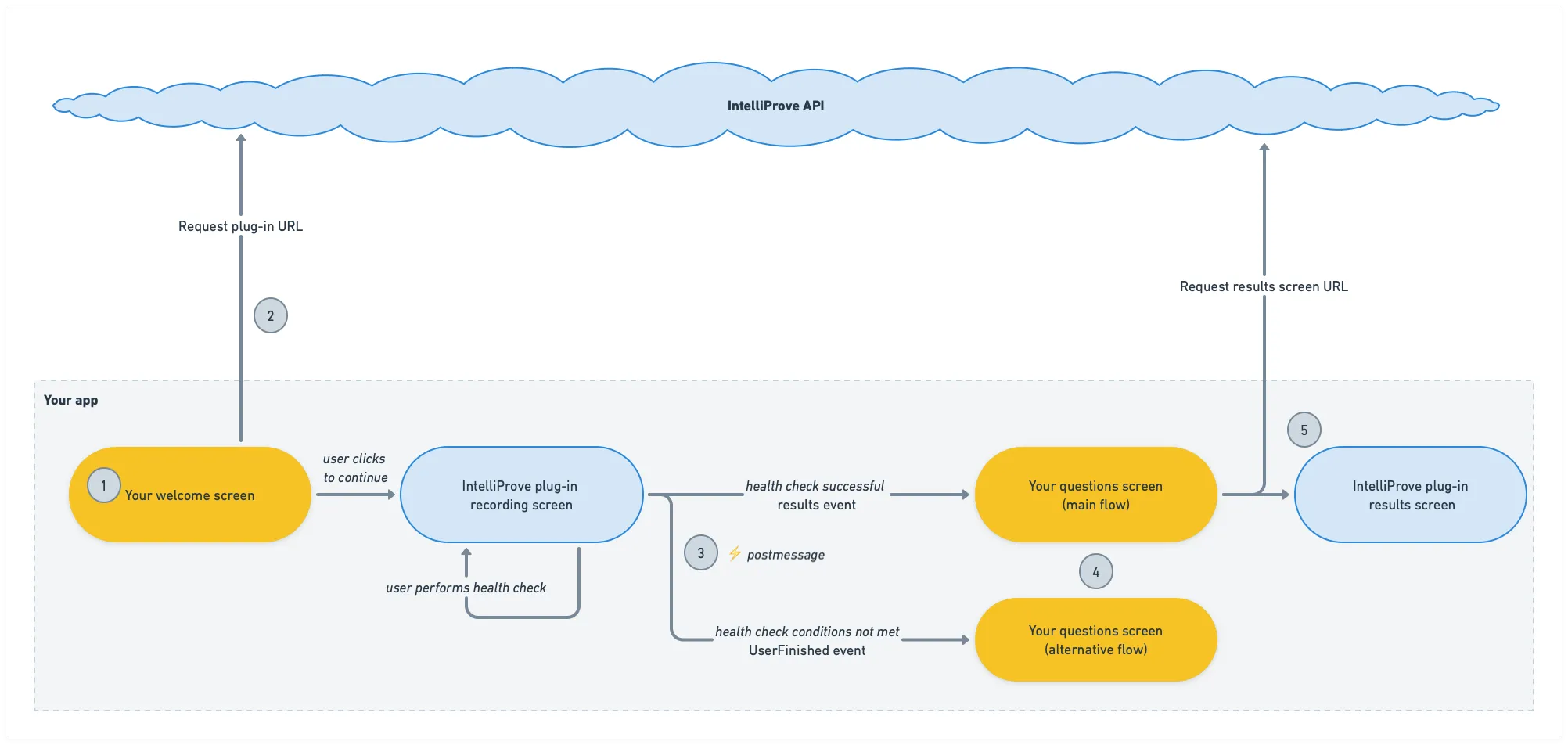
1. Display your app’s welcome screen.
2. Request the plug-in URL (see Request plug-in URL) and embed it in your app where desired (see Embed plug-in).
3. To determine when the measurement is completed and when to switch from the recording screen to your own screen, listen for the Results event. Refer to our Message events documentation for more information about these events.
4. Show your custom screen.
5. Show the results when the user has completed the necessary steps on your custom screen. You have two options to display the results:
- In case you’d like to use the plug-in’s built-in results screen, this involves calling our API to fetch the results URL and embedding it in your app. This is explained in the Request results screen URL page.
- In case you’d like to design a custom results screen, make sure to listen for the
Resultsevent,BucketsandBucket summariesfrom the plug-in, which are sent when by the plug-in when the measurement completes. These events contain all the results from the health scan in JSON format.